Claude Code for Research and Development: A Walkthrough
A walkthrough on using agentic LLMs to accelerate research and development workflows
Introduction
Many of us are witnessing the rapid advances in LLM development, and something is genuinely transforming in our daily workflows. It is not just that AI got smarter (though it did). It is not just that the tools got better (though they did too). The actual transformation is that LLMs are not only chatting, they are also getting more arms day by day. They are becoming agentic. With proper agentic workflows, LLMs can now plan a sequence of actions, execute them, observe what happened, and revise. They can read files, run scripts on your behalf, search the web, and edit code, all without leaving the terminal, and without you micromanaging every step.
I have been using Claude Code as a primary assistant in my daily work for several months now, and I want to share what I have learned. This article is for anyone curious to build better and more exciting workflows with LLMs in the agentic world.
One disclaimer up front: most of this article covers my workflow. I am sure there are sharper, smarter ways to do many of the things I do here that you may be doing already. Claude Code is also a fast-moving tool with a surface area that grows almost weekly, so this article does not attempt to cover every feature or corner case; it is always great to be updated and keep an eye of relevant official claude code sources. If you have your own setup, I would love to hear about it and also let others know about it. Consider this article an invitation to compare notes, spread the word, and workflows with a wider audience of similar interests.
How to Read This Article
This article is long on purpose. It is meant to be a reference someone (including me) can come back to, not a single-sitting read. A few suggestions to make it lighter:
- Skip what you already know. If you are comfortable with Git, jump past Part 1. If you have used Claude Code for a while, skim Parts 3 and 4 and slow down on hooks, skills, and subagents.
- Read by part, not by line. Each part is self-contained. The table of contents on the side should be very helpful.
- The code blocks are illustrative. Adapt them to your stack. The shape of the workflow matters more than the exact configuration. You may search the net or even consult Claude itself to craft these code blocks better for your workflow.
Preamble: Key Concepts to Align On
Before diving deeper, let us establish some common ground.
What Makes AI “Agentic”?
Consider two kinds of colleagues. The first is brilliant but passive: you describe a problem, he thinks it over and gives you advice, and the ball is back in your court to implement (or copy & paste). The second is equally brilliant but active: you describe a problem, he sits next to you, opens your files, runs a few commands, reads the output, adjusts his approach, and hands you something working. Both are valuable. But when you are deep in a deadline, the second one changes your day.
A regular chat interface (like Claude.ai or ChatGPT) is the first colleague. You send a message, the model responds, and that is it. An agentic AI system is the second: it can use tools (execute bash commands, read and write files, call APIs, search the web), take multi-step actions, and self-correct based on what it observes. The core loop looks like this:
Plan → Act → Observe → Revise
The model proposes what it will do, executes one step, reads the result (terminal output, file contents, error message), and adjusts. This is fundamentally different from a simple back-and-forth chat.
The distinction matters in practice. When you ask a chat interface, “How do I compute Cohen’s d across model pairs or runs?”, it tells you. When you ask an agentic system, it opens your evaluation script, writes the function, runs it on your data, reads the error, fixes it, and shows you the result. The knowledge is the same. The leverage is not.
Claude Code and tools like it (Gemini CLI from Google, opencode from the open-source community, and Codex from OpenAI) are agentic AI systems built to work inside your development environment. They share the same underlying models as their chat counterparts, but they operate with access to your file system, your terminal, and your tools.
Part 1: Git as a Useful Practice
Before we dive into the agentic world, I want to stress on something that might sound boring: proper Git practices are one of the most useful habits you can build or bring into an agentic workflow. This is true whether or not you use Agentic AI, but it becomes highly useful the moment an agent starts editing your files.
When an agent can edit your files, rename functions, refactor modules, and create new scripts across dozens of files in a single session, you need a clean way to review, approve, and roll back those changes. Without Git, you are flying blind, trying to remember what changed and what did not. With Git, every agent action becomes a diff you can read, approve, reject, or revise. This shifts the question from “did the AI write good code?”, which is hard to answer in the abstract, to “is this diff correct and do I understand it?”, which is practical to ask and much easier to follow. In that sense, an interaction with an agentic system is best thought of as a small pull request with a well-defined scope: the agent proposes; you review; you merge, refine, or discard.
Git also helps with something subtler: cognitive load. Agentic sessions move fast. The agent can touch ten files in a minute, and a long session can rack up dozens of changes before you realize you have lost track. Frequent commits act like checkpoints. They free your working memory: you do not need to remember what state the code was in five minutes ago, because Git remembers it for you. When something goes wrong (and it will), git diff and git reset are far cheaper than trying to mentally reconstruct what the agent did.
A Practical Git Mindset
These tips are useful with or without an agentic workflow. They just become non-negotiable when an agent is involved.
- Commit after each meaningful action, fixed bug, or completed feature. Commit small, but commit when something is actually done, not in the middle of a half-baked refactor and not after a long session(s) with a dozen unrelated changes mixed together.
- Read diffs before committing. Use the VSCode diff view, or
git diffif you prefer the terminal (I do not :) ). You do not need to understand every line, but you should have an overview of what is being committed. If you cannot summarize the diff in one sentence (i.e. the commit message), you will most probably lose control over your project later. - Write real commit messages. Underrated but very useful, even if the only person reading them is future-you trying to understand what happened last week.
- Start agent sessions on a clean branch. Optional but recommended: better not to run an agent on
maindirectly. A branch namedexperiment/arabic-ner-refactorcosts nothing and gives you a full rollback if the session goes sideways.
Part 2: AI Assistance for Research and Development Tasks
Before discussing agentic systems, it is worth understanding what can be accomplished with an AI assistant through a chat interface alone. This layer is especially useful while validating, searching, and brainstorming, and most will get a lot of value out of it before they even need an agentic tool.
The tasks that benefit most from AI assistance fall into a few natural categories.
Writing and Communication
For a given text (e.g your paper), concrete things that work well here:
- Proofreading and grammar.
- Tightening or shifting tone.
- Summarizing or expanding.
- Improving clarity.
- Drafting reviewer responses.
- Drafting abstracts and conclusions.
- searching for related literature.
One calibration worth making explicit here: the model tends toward verbosity. Left unconstrained, it produces fluent text that is slightly longer than your preference. Build constraints into your prompts (“no more than 150 words”, “single paragraph of around N lines”, “short, elegant, and academically sounding”), and you will mostly get tighter and better outputs.
Literature Review and Research Exploration
The genuinely useful version of this is deep research: Gemini’s deep research feature or Claude’s research mode/deep research (where available) autonomously searches academic databases (arXiv, ScienceDirect, Semantic Scholar, ACL Anthology, etc.), reads papers, and synthesizes across sources over several minutes. For initial landscape exploration in a new subfield, this is remarkably useful. For anything rigorous that goes into a paper, it requires careful verification. Hallucinated citations (though they tend to be less frequent in deep-research mode than in plain chat against the model’s training data) are a real risk with all current models, and niche subfields are particularly prone to this.
A concrete example. I was interested in a small research question: what happens when you prompt an LLM to deliberately give a wrong answer choice to multiple-choice questions from MMLU-style benchmarks instead of the correct choice? Are there existing studies of that exact behavior? Actually, this question is interesting because it challenges the model’s alignment (RLHF phase) and investigates its distribution (which wrong answer is it going to pick?). I asked Claude in deep research mode:
I want you to do deep research on academic resources (arXiv, ScienceDirect, ICLR, ICML, ACL, etc.) and find any related research that studies multiple-choice benchmarks and how LLMs select answers. I am planning a study where I prompt the LLM to respond with a wrong answer instead of the right answer for an MCQ question (from popular MMLU-style benchmarks), and I am interested in any related work. Can you do that for me?
After the first pass, I followed up with some other questions:
did you find anyone who exactly prompts the LLM to give wrong answers and then studies the behavior?
and (for more brainstorming ideas):
you give a nice motivation for my work; what else could be done to make it better in terms of analysis and experiments?
Within a few minutes, I had a structured map of the related literature that gave a clear view of the gap to position my work against, plus a list of suggested experiments and analyses. The end result of that conversation is in this artifact. It is not a substitute for reading the papers, but it shrank what would have been a few hours or even days of background and related literature surf into a single afternoon.
Brainstorming Research Methodology
A related use case is using the chat as a thinking and brainstorming partner for research design. I have had productive sessions where I describe a half-formed idea, the model pushes back, asks clarifying questions, and proposes alternative framings. The chat becomes a back-and-forth about how to structure an evaluation, what to control for, and which baselines actually answer the question you care about. The model will not fully design the experiment for you, but it is a great partner for the parts of methodology you would otherwise work out alone on a whiteboard: which LLM(s) to choose, which dataset(s) to evaluate on, how to lay out the experimental pipeline, and so on. Once you have this as a final recipe, you can pass it to Claude Code for the implementation.
Development Tasks
For research and development workflows that involve coding, AI assistants handle a wide range of tasks well before you even open a terminal:
- Code explanation. Paste an unfamiliar codebase section and ask what it does and what the edge cases are. Particularly valuable when inheriting someone else’s research/developed code.
- API exploration. “What is the correct way to use
Trainerfrom HuggingFace Transformers for multi-GPU evaluation?” Faster than reading docs, though you should still verify against them. - Debugging. Describe a bug and the relevant code; ask for the causes, then fix.
- Tools explorations and framework comparisons. “I am building a retrieval pipeline over 2M documents. What are the available indexers there? Compare LlamaIndex vs. Haystack vs. building it directly with FAISS plus a thin wrapper vs. other alternatives (you may search the net), given that I care most about reproducibility and want to swap embedding models cheaply.” This is the kind of question where a chat interface shows value: it surfaces tradeoffs you might not have considered, asks about constraints, and forces to articulate your priorities.
- Migration and refactoring plans of developed software. “Here is a Flask monolith that handles auth, ingestion, and inference. I want to split it into two services. Walk me through the cleanest way to do that, what to extract first, and what to leave alone.” The model is a good thinking partner for these structural decisions; it will push back, suggest alternatives, and flag tradeoffs.
- Choosing the right tool for a one-off task. “I need to deduplicate a 50GB JSONL of web text by near-duplicate detection. What is the lightest-weight approach that does not need a Spark cluster?” Five minutes of chat saves an afternoon of evaluating libraries.
The pattern across all of these: the assistant is most useful when you bring it a specific situation with constraints, instead of a generic question.
A Tooling Tip Worth Mentioning: Diagrams
Slightly off the main flow here, but too useful to leave out. How do you generally create diagrams? If you are using code-based diagram tools like draw.io or mairmaid, you do not need to craft your first draft diagram by hand, the LLM can do that for you. Given a prose description of a figure (an architecture diagram, a pipeline overview, an experimental setup) or even a paper writeup where the model suggests an overview figure, it can produce mxGraph XML (draw.io xml DSL) with consistent node sizes, sensible alignment, readable labels, and a coherent color palette. I usually instruct it to aim for “elegant, academic, simple to follow with nice aesthetics.” The result is rarely perfect on the first pass, but it is a far faster starting point than building from scratch in the GUI, and the output drops straight into draw.io for fine-tuning. I almost always do this in the chat interface (not Claude Code in terminal), since the iteration loop (“look at the rendered diagram, ask for tweaks, paste the new XML back into draw.io”) does not really need the agent’s tools.
Part 3: Claude Code on the Terminal
Now we get to the main event. The terminal is where agentic AI goes from interesting to genuinely transformative. This section covers installation, the surrounding project structure, and the more subtle craft of hooks, skills, commands, subagents, and memory.
Installation and First Run
Claude Code is a terminal app distributed as an npm package:
1
npm install -g @anthropic-ai/claude-code
Navigate to your project directory and launch it:
1
claude
On first run, you authenticate with your Anthropic account (either via your subscription or via an API key). Claude Code reads your current directory and is ready to work.
A few things worth knowing immediately: the agent can see your entire current directory tree, so be intentional about where you launch it. By default, it asks for your approval before executing commands. And your session context is local; it is not stored beyond the active window unless you explicitly resume.
For those who prefer working programmatically, Claude Code also exposes Python and TypeScript SDKs that let you integrate the same agentic capabilities directly into your own scripts and pipelines, or even invoke the agent from your own code via command-line calls. If you are building a research automation system, for instance, an evaluation pipeline that autonomously runs experiments and summarizes results, the SDK is a good option to explore rather than the interactive terminal.
Both Claude.ai and Claude Code support the concept of projects, named workspaces that group related conversations or sessions. In Claude.ai, projects let you keep separate chats for different topics, each with its own context and uploaded files. In Claude Code, projects also come with their own CLAUDE.md, hooks configuration, and session history.
CLAUDE.md
CLAUDE.md is a file you place at the root of your project (or in your home directory for global settings). Claude Code reads it automatically at the start of every session. It contains the things the agent should know about the project in hand before it does anything. This file is usually created and edited with the /init command of Claude Code.
A simplified CLAUDE.md example for a project:
1
2
3
4
5
6
7
8
9
10
11
12
13
14
15
16
17
18
19
20
21
22
# Project: Arabic Instruction Tuning Evaluation

## Context
Evaluates LLaMA 3.1-8B, AceGPT-v2-8B, and Qwen3-8B across six Arabic NLP tasks
using the STAR dataset. Evaluation framework is in `src/eval/`.

## Conventions
- Package management: always use `uv`, never raw pip.
- Default ML stack: PyTorch + HuggingFace Transformers.
- CLI interfaces: use `fire`. Progress bars: always use `tqdm`.
- Distribute code across files. No monolithic scripts.

## Environment
- The `.env` file at root contains all API keys and sensitive data.
  Load with `python-dotenv` in Python. Never hardcode credentials.
- Dataset: `/data/star/` is read-only. Results go in `results/` with ISO date prefix.

## Current Status
- Completed: SA, NER, MT task loaders.
- In progress: QA loader (`src/tasks/qa.py`).
- Blockers: JAIS model access pending HPC queue.
...
Note the .env entry. This is a practical tip that applies to almost every project: a .env file at the project root, loaded via python-dotenv in Python (or dotenv in Node), contains all environment-specific values, including API keys, sensitive details, and server addresses. The agent respects it, your scripts use it, and nothing sensitive ever gets hardcoded.
For research groups or development teams, a shared CLAUDE.md at the repo root encodes group/team conventions (coding standards, dataset locations, paper style requirements) so every member and every agent operates consistently.
Modes and Permissions
Before getting into the more advanced tricks (hooks, skills, commands, MCPs), it helps to understand the operating modes Claude Code runs in. Choosing the right one for the task is a skill that develops quickly with practice, and the rest of this section assumes you know which mode you are in.
Edit Modes (Default)
Claude Code gives two options here: either edit automatically or approve before editing. The default: Claude proposes file edits and waits for your approval before applying them. You see the diff, approve or reject, and the change is made. Safest mode. Recommended for any session touching real experimental data or results. But for non-sensitive edits, you can proceed with editing automatically.
Plan Mode
Claude proposes a plan, a structured sequence of steps, files to touch, and changes to make, without touching anything. You review and modify the plan if needed, and then either authorize execution or continue planning.
This is the right starting point for large refactoring tasks, new feature additions, hard bugs, or any session where you want to understand the scope before committing. For research code, which tends to be tangled and underdocumented, starting complex tasks in plan mode is a good habit.
Skip Permissions
With --dangerously-skip-permissions, Claude executes without pausing for approval at each step. Right for trusted, automated pipelines: a nightly evaluation run, a preprocessing job over a dataset, where you want the agent to proceed without interruption.
Use it carefully. The agent can overwrite results, delete intermediates, or make irreversible changes without stopping. Rule of thumb: skip permissions only when Git is clean, the sequence of steps has been tested at least once interactively, and you have a clear rollback plan.
Dictation Mode
Less known but genuinely useful: Claude Code now ships with a built-in voice dictation mode (/voice, available from Claude v2.1.69 onward, docs here). You hold a key and speak; the audio is streamed to Anthropic for transcription and dropped live into your prompt input, so you can mix voice and typing in the same message. The default push-to-talk key is Space, and you can rebind it to a modifier so dictation activates on the first keypress instead of after a hold. One thing to note: the speech-to-text service is only available when you authenticate with a Claude.ai account; it does not work with raw API keys. This works well during exploratory sessions when your hands are occupied: running an experiment, sketching on a whiteboard, thinking out loud. You narrate what you want, Claude executes. For brainstorming-driven sessions, the ability to think out loud and have something happen feels exciting.
Project Structure for Skills, Commands, and Hooks
Before talking about what these are, it helps to know where they live. Everything in this section, CLAUDE.md, hooks, skills, commands, subagents, and MCPs, applies equally whether you use Claude Code in the terminal or through the VSCode extension (comes later). The same .claude/ directory powers both.
Claude Code follows a convention-based project structure under .claude/ at your project root:
1
2
3
4
5
6
7
8
9
10
11
12
13
14
15
16
17
your-project/
├── .claude/
│   ├── settings.json       # hooks, permissions, model config
│   ├── commands/           # slash commands (one .md file per command)
│   │   ├── question-first.md
│   │   ├── literature-review.md
│   │   └── paper-revision.md
│   └── skills/             # reusable instruction sets
│       ├── coding-conventions/
│       │   └── SKILL.md
│       ├── prompt-improvement/
│       │   └── SKILL.md
│       └── lint-and-test/
│           └── SKILL.md
├── CLAUDE.md               # project memory and context
├── .env                    # environment variables (never commit this)
└── src/
Subagents are not files in the same sense; they are spawned during a session, as we will see shortly.
Hooks: Automating Around the Agent
Claude Code hooks are event-driven shell commands that fire automatically before or after certain agent events. They are defined in .claude/settings.json and give you a layer of automation that runs regardless of what the agent does.
The current set of hook events is broad. The most useful ones in practice are:
PreToolUse— fires after the agent decides on a tool call but before it runs. You can inspect, modify, or block.PostToolUse— fires immediately after a tool call completes successfully, with both the input arguments and the response available.PostToolUseFailure— fires when a tool call fails, letting you inject context about why for the agent to react to.UserPromptSubmit— fires when you submit a prompt; useful for injecting context (e.g. current git status, the failing test output) automatically.SessionStart— fires when a session starts or resumes.StopandSubagentStop— fire when the main agent or a subagent finishes; you can even force the agent to keep working.PreCompact,Notification,PermissionRequest— for the more advanced cases of compaction, system notifications, and permission flow.
A few examples of what this enables:
Auto-lint after every file edit:
1
2
3
4
5
6
7
8
9
10
{
  "hooks": {
    "PostToolUse": [
      {
        "match": { "tool": "Write", "path": "*.py" },
        "command": "ruff check {path} --fix"
      }
    ]
  }
}
Every time the agent writes a Python file, ruff runs automatically. You never merge unlinted agent code.
Log all bash commands the agent runs:
1
2
3
4
5
6
7
8
9
10
{
  "hooks": {
    "PreToolUse": [
      {
        "match": { "tool": "Bash" },
        "command": "echo \"[$(date -Iseconds)] $ {command}\" >> .claude/bash_log.txt"
      }
    ]
  }
}
A complete audit log of every command the agent executed, timestamped. Useful for debugging a session that went sideways, and useful for reproducibility documentation.
Run tests after touching the source tree:
1
2
3
4
5
6
7
8
9
10
{
  "hooks": {
    "PostToolUse": [
      {
        "match": { "tool": "Write", "path": "src/*" },
        "command": "pytest tests/ -x -q"
      }
    ]
  }
}
The agent edits a file in src/, tests run immediately. These hooks make the agent a better citizen of your development workflow: it is not just generating code, it is generating code that has already been linted, tested, and logged.
Skills: Encoding How You Work
Skills are reusable instruction sets that teach the agent your conventions. Defined once, invoked by name. This means you do not repeat yourself across sessions, and in a team setting, everyone’s agent sessions follow the same standards.
Skills can live in several places, with a clear precedence rule:
- Project skills at
.claude/skills/<name>/SKILL.mdtravel with the repo via Git and apply only to that project. - Personal skills at
~/.claude/skills/<name>/SKILL.mdare yours, available across every project. - Enterprise / managed skills, deployed via managed settings, apply to every user in an organization.
- Plugin skills, bundled inside a plugin, are namespaced as
plugin-name:skill-nameand cannot collide with the others.
When the same name appears in multiple locations, higher-priority locations win in the order: enterprise > personal > project. So an organization-managed skill overrides your personal one, and your personal one overrides a project one of the same name. (If a skill and a legacy command share a name, the skill takes precedence.)
Each skill is a directory containing a SKILL.md file. The file starts with YAML frontmatter that gives the skill a name and a description (Claude uses the description to decide when to invoke the skill, so be specific), followed by the markdown instructions themselves.
.claude/skills/coding-conventions/SKILL.md:
1
2
3
4
5
6
7
8
9
10
11
12
---
name: coding-conventions
description: Apply this project's Python coding conventions when writing or editing any .py file.
---

When writing Python in this project:
- Use `uv` for package management. Never raw pip.
- Default stack: PyTorch + HuggingFace Transformers unless told otherwise.
- All scripts with iteration: add `tqdm` progress bars.
- All CLI interfaces: use `fire`. No argparse.
- One logical unit per file. No monolithic scripts.
- Load environment variables with `python-dotenv` from `.env`.
.claude/skills/lint-and-test/SKILL.md:
1
2
3
4
5
6
7
8
9
10
---
name: lint-and-test
description: After writing or modifying any Python file, lint and test it before considering the task done.
---

After writing or modifying any Python file:
1. Run `ruff check {file} --fix` and apply clean fixes.
2. Run `pytest tests/ -x -q` and report any failures.
3. If tests fail, diagnose before proposing fixes. Do not blindly patch.
4. Do not mark a task complete if tests are failing.
.claude/skills/prompt-improvement/SKILL.md:
1
2
3
4
5
6
7
8
9
10
11
---
name: prompt-improvement
description: Use when the user shares a prompt and asks for review or improvement.
---

When I share a prompt, analyze it for:
1. Ambiguity: what could be misinterpreted?
2. Missing context: what does the model need that is not stated?
3. Missing constraints: format, length, tone, output structure.
4. Missing examples: would a few-shot example help?
Then propose an improved version. Show your reasoning.
Skills can ship code too, not just prose. While writing this article I built pptx-from-file, a project skill that turns a source file (pdf, markdown, docx, ipynb) into a polished .pptx. Its SKILL.md encodes taste — read the content for design signals first, confirm an outline before building, keep one accent color, ask before fetching web images — and sits next to a template.py helper that provides seven layouts and per-paragraph animations. Invocation is as plain as “make a pptx from <path>“. The point: a skill can bundle a small design system and a Python module alongside its instructions, not only a style guide. For a concrete look at the output, here is a sample generated presentation generated from this article.
A relatively new development: you no longer have to write every skill from scratch. Skill marketplaces have appeared (Anthropic’s own plugins page, community indexes like tonsofskills.com, and large open collections like alirezarezvani/claude-skills or jeremylongshore/claude-code-plugins-plus-skills) where third parties publish ready-made skills you can install, e.g. /plugin marketplace add alirezarezvani/claude-skills followed by /plugin install <name>. Concrete examples include CI/CD vendor packs that wire the agent into GitHub Actions or GitLab pipelines, and Git automation, testing, and code-review skill bundles. A notable example is Superpowers, a plugin that ships a complete development workflow built on composable skills: test-driven development with RED-GREEN-REFACTOR cycles, systematic debugging, code review, planning, subagent-driven parallel implementation, and Git worktree management for isolated branches — all triggered automatically through hooks without requiring explicit commands. Cloud providers and SaaS vendors are starting to ship official skills the same way they ship SDKs, which means a chunk of “teach the agent how this tool works” can now be borrowed instead of written.
Skills can take arguments too. Just like commands (covered in the next section), a skill body can reference $ARGUMENTS to capture everything the user typed when invoking it, or use positional placeholders like $0, $1, $2. So a fix-issue skill containing Fix GitHub issue $ARGUMENTS following our coding standards, when invoked as /fix-issue 123, expands to “Fix GitHub issue 123 following our coding standards.” This is what makes skills feel like small parameterized functions rather than static instructions.
Install skills with caution. A skill is, by definition, instructions that your agent will follow. A malicious or careless skill can tell the agent to exfiltrate secrets from your .env, run destructive commands, open backdoors in code it writes, or quietly steer it toward dependencies the author controls. Treat installing a skill the same way you treat installing an unvetted browser extension or curl | sh script: read the SKILL.md end to end before installing, prefer skills from sources you trust, pin to specific versions when you can, and be especially careful with skills that ask to run shell commands or touch credentials.
Commands: Codified Workflows
Commands are slash-prefixed shortcuts for recurring workflows. Each command is a single markdown file in .claude/commands/ (project-scoped) or ~/.claude/commands/ (global). The filename becomes the command name: literature-review.md becomes /literature-review. The contents of the file are the prompt that gets injected when you invoke the command. That is the entire mechanism, which is part of why it is so easy to build up a personal library.
A note on the recent merge with skills. Anthropic has recently merged custom commands into skills: a file at
.claude/commands/deploy.mdand a skill at.claude/skills/deploy/SKILL.mdboth create/deployand behave the same way. Existing.claude/commands/files keep working, so nothing in this section is broken up to the time of writing this article. Keep an eye on the official docs for migration plans. Skills just add optional features on top: a directory for supporting files, richer frontmatter, and the ability for Claude to load them automatically when relevant. If you are starting from scratch today, prefer skills; if you already have acommands/library, there is no rush to migrate.
A useful starter command, .claude/commands/question-first.md:
1
2
3
Before proposing a plan, adding a feature, fixing a bug, or making any structural
change: ask me at least five clarifying questions. Do not assume anything. Do not
proceed until I have answered all of them. Only then propose what you intend to do.
The agent’s instinct is to act. This command forces it to understand and question first. Especially valuable where a “simple fix” can have non-obvious effects on experimental results, or adding a small feature has an unnoticeable effect on another running feature.
.claude/commands/literature-review.md:
1
2
3
4
5
6
Given paper abstracts or PDFs I will share:
1. Summarize each: contribution, methodology, limitations, open questions.
2. Map relationships: agreements, contradictions, lineage.
3. Identify the most significant unsolved problem.
4. Suggest three concrete research directions grounded in the gaps.
Output as structured Markdown with a comparison table.
.claude/commands/paper-revision.md:
1
2
3
4
5
Given a paper section and reviewer comments:
1. Classify each comment: valid criticism / misunderstanding / out of scope.
2. Draft a response: firm, respectful, specific.
3. For valid criticisms, propose a concrete revision to the paper text.
Keep the author's voice. Do not overconcede.
.claude/commands/lint-and-test.md:
1
2
3
4
Run the full quality check on the current state of the codebase:
1. `ruff check src/ --fix`
2. `pytest tests/ -v`
3. Report results. If anything fails, propose targeted fixes, one at a time.
Commands (and skills) can take arguments. Inside a command or skill file, you can reference $ARGUMENTS to capture everything the user typed after the command name, or use positional placeholders like $ARGUMENTS[0], $ARGUMENTS[1], with $0, $1, … as a shorthand. So a fix-issue.md containing Fix GitHub issue $ARGUMENTS following our coding standards will, when invoked as /fix-issue 123, expand to “Fix GitHub issue 123 following our coding standards.” A migrate-component.md with Migrate the $0 component from $1 to $2 invoked as /migrate-component SearchBar React Vue will fill the slots in order. If you forget to include $ARGUMENTS in the file but pass arguments anyway, Claude Code politely appends ARGUMENTS: <your input> to the end of the prompt so nothing is lost.
There is also a more advanced trick worth knowing about: a command file can run shell commands locally at expansion time and splice their output into the prompt before Claude ever sees it. Inside the markdown file, you write !`gh pr diff` (a backtick command prefixed with !), or a fenced ` ```! ` block for multi-line. When you invoke the command, Claude Code runs those shell commands on your machine first, substitutes their output into the file, and only then sends the fully expanded prompt to the model. So a pr-summary.md containing !`gh pr diff` and !`gh pr view --comments` arrives at Claude already populated with real PR data — no extra round trips. Keep the embedded commands cheap and read-only, since they run unconditionally on every invocation. See the official slash-commands docs for the full syntax.
Subagents: Parallelism and Context Management
Subagents are spawned worker agents that run with their own context window, their own system prompt, and (optionally) their own restricted set of tools. The main agent delegates a self-contained task to a subagent, and only the subagent’s final summary comes back to the main session.
Concrete examples make this less abstract. Claude Code ships with a few built-in subagents you will encounter regularly:
Explore: a code search and codebase-comprehension agent. Ask the main agent “where do we normalize Arabic text?” and it will spawnExplore, which reads dozens of files and runs many greps internally, then returns a one-paragraph answer plus a few file:line pointers. The twenty files it opened never enter your main context.Plan: a planning agent that drafts a structured implementation plan for a non-trivial task (e.g. “split this Flask monolith into two services”), without touching any files. The main agent then executes the approved plan.- General-purpose research agents: for open-ended questions that need multiple search rounds (“which evaluation harness do we use, and how is it wired into CI?”), spawned automatically when the main agent judges the task too noisy to do inline.
You can also define your own in .claude/agents/, for example, a test-runner subagent that only has shell access and is responsible for running the test suite and reporting failures, or a paper-section-drafter with read-only access to your notes directory.
The two real benefits:
- Parallelism. Multiple subagents can run concurrently, which speeds up workflows where independent subtasks can proceed in parallel: searching three parts of a codebase at once, running independent evaluations, drafting two sections of a document while a third is being verified.
- Context management. This is the underrated one. Subagents are useful whenever a task produces a lot of intermediate output that the main session does not need to remember. The classic example is the Explore subagent: when you ask it to “find every place we compute Cohen’s d in this repo,” it may read twenty files and run a dozen greps internally, but only its short final answer ever lands in the main context. Your main session stays focused on the task at hand instead of being polluted with raw search output.
A good rule of thumb: if a step would otherwise dump pages of tool output into your main conversation, that step belongs in a subagent. Tasks like running long test suites, scraping documentation, exploring an unfamiliar codebase, or comparing several candidate refactors are all natural fits.
In practice, you do not always invoke subagents explicitly. The main agent will spawn them on its own when it judges the task to be a good fit, especially with built-in agents like Explore. You can also nudge it: “use the Explore subagent to find all callers of train_step and report back”, or define your own specialized subagents in .claude/agents/ with their own permissions and prompts.
MCP Servers: Extending What the Agent Can See
MCP (Model Context Protocol) servers extend Claude Code’s reach beyond your local file system. They are plugins that give the agent access to external data sources, services, and tools through a standard interface.
Context7 is a very nice example of these MCPs. It gives the agent access to up-to-date documentation for frameworks and libraries: HuggingFace Transformers, PyTorch, scikit-learn, and many others. This matters because model training data has a cutoff, meaning API knowledge can be outdated. With Context7, when the agent writes code using transformers, it fetches the current documentation for the version you are on first. Deprecated function calls become much rarer.
A few others worth knowing about for research-leaning workflows:
- GitHub MCP: interact with issues, pull requests, releases, and repository metadata. Useful if you manage your research project as a GitHub repository, which, given Part 1, you probably should.
- Firecrawl MCP: search and scrape the live web, returning clean Markdown the agent can actually read. Strips ads and navigation so you get content, not noise. Great for “go read this paper page and extract the key claims.”
- Exa MCP and Perplexity MCP: semantic web search and deep-research tools that return synthesized answers, not just lists of links. Useful for ad-hoc literature surveys inside an agent session.
- GPT Researcher MCP: exposes a “do deep research” tool over MCP, which can run a multi-minute structured research job and return a sourced report.
- Playwright MCP: drives a real browser (clicking, typing, navigating, taking screenshots, reading the DOM) from inside an agent session. For developers, this is a genuinely useful debugging tool: the agent can reproduce a frontend bug end-to-end, inspect the rendered DOM, capture a screenshot of the broken state, read the console errors, and then propose a fix grounded in what it actually saw, not in what it guessed the page looked like. It also covers light end-to-end test authoring and “click through this flow and tell me what breaks” scenarios.
A question here: if Firecrawl, Exa, and Perplexity all do web search and retrieval, do they replace Claude Code’s built-in WebSearch and WebFetch tools? In practice, they do not so much replace the built-ins as complement them. The built-in tools are fine for quick lookups; the MCP servers shine when you want richer behavior: cleaner Markdown extraction (Firecrawl), semantic neural search with better recall on conceptual queries (Exa), or synthesized multi-source answers and deep research reports (Perplexity, GPT Researcher). For research-heavy sessions where the quality of retrieval directly affects the work, MCP-backed options are worth the setup; for casual “what is the syntax of X” questions, the built-ins are still the right tool.
A few honest caveats about MCP servers. Every MCP server you enable injects its tool definitions and descriptions into your context window at session start, so an agent connected to ten servers is starting every conversation with a measurably larger prompt and a measurably narrower budget for actual work. Be selective: enable the MCPs you actually use in this project, not everything you have ever installed.
Approach MCP installation with the same caution as skills, and arguably more. An MCP server is a third-party process that the agent can call at will: it can read files, hit external APIs, touch credentials, and mutate data in services you have authenticated against. They are also a known vector for prompt injection, a poisoned tool description, or a malicious document fetched through one MCP can rewrite the agent’s instructions and steer it toward another. Prefer trusted sources, read what the server actually does before enabling it, pin versions, and never connect a server to credentials it does not strictly need.
MCP servers are configured in .claude/settings.json. The ecosystem is growing quickly; checking the registry every couple of months for research-relevant additions is worthwhile.
Part 4: Claude Code Beyond the Terminal: VSCode and the Web
Everything in Part 3 applies identically whether you run Claude Code in the terminal, inside VSCode, or in a browser tab. The configuration files, CLAUDE.md, hooks, skills, commands, subagents, and MCPs, are all shared with some niche differences (e.g. voice dictation is not working in the VSCode extension yet). What changes between these surfaces is the working style, not the capabilities.
VSCode Extension
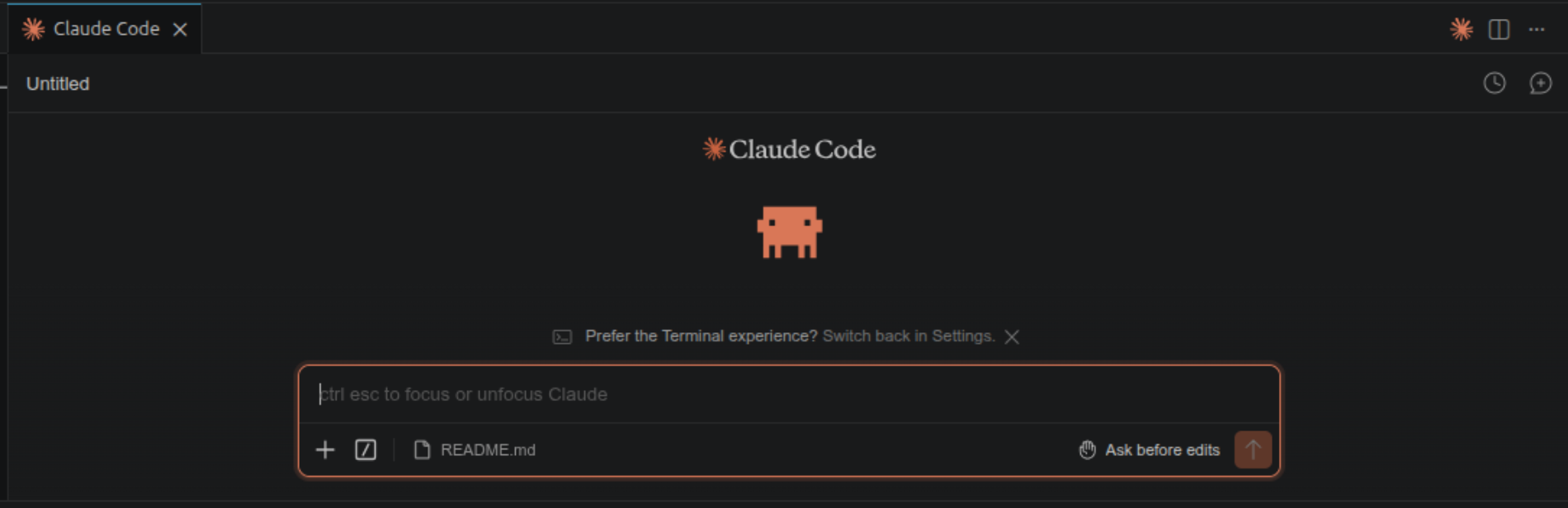
The VSCode extension surfaces Claude Code inside your IDE. The terminal and the extension are not optimized for different types of tasks; they are optimized for different working styles. The terminal suits use cases implemented outside an IDE, or in domain-specific environments like Android Studio, where a dedicated Claude Code extension may not be available (I am not sure if one was recently added). The VSCode extension is the natural fit when you are already living inside VSCode, want diffs to render in the editor you already know, and want to pivot between agent edits and your own edits without context-switching out of the IDE.
Claude Code on the Web
Claude Code is also available as a browser-based interface, no installation required. You access it through claude.ai/code and get an experience similar to the terminal or the VSCode extension. There are two flavors worth distinguishing.
The first is the GitHub-connected flavor. You point it at a repo, give it a task, and the agent works on a sandboxed copy and opens a pull request when it is done. This is the cleanest mode by far: every change you get is a PR, every PR has a diff, every diff goes through code review the same way any other contribution would, and CI/CD picks up where you left off. If your code lives in GitHub, this is a recommended option. You can kick off a feature or a fix, approve the PR, let CI deploy, and see changes live, all from a browser tab.
The second flavor connects the web UI to your local machine as a remote. The agent runs against your filesystem from the browser, which is convenient for picking up a session away from your desk. The friction here is exactly what you would expect: it is harder to verify diffs in real time, because the canonical diff view is back on the machine the agent is touching. In practice, you end up tabbing back to your laptop (or to the VSCode extension running there) to review the source-control panel and git diff. It is fine for small follow-ups, but for anything substantive, the local machine is a recommended place where reviews and commits happen.
Both flavors have a real niche: starting a session from your local machine and following it up from your phone while you are away from your desk.
Part 5: What’s Coming: Claude in the Ecosystem
Agentic tools are evolving fast, and the next wave is moving from “single-session coding assistants” toward “longer-horizon collaborators” that can run across hours or even days, maintain memory between sessions, operate at the level of your whole desktop, and work under looser supervision. This part is a quick tour of two such directions worth keeping an eye on. Honest disclaimer: I have not used these in anger yet; what follows is based on what I have read and on early experimentation, not on production experience.
Claude Cowork
Anthropic recently introduced Claude Cowork, an agentic tool built into the Claude desktop app that turns Claude into something closer to a digital coworker than a coding assistant. Unlike Claude Code, which lives in your terminal or IDE and operates on a project, Cowork is positioned at the level of your whole desktop: you can point it at a folder full of receipt screenshots and ask for an expense spreadsheet, hand it a chaotic Downloads folder and ask it to be reorganized, or ask it to draft a document from notes scattered across your machine. Recent updates went further still and let Cowork (and Claude Code) directly control a Mac or Windows desktop, clicking, typing, navigating apps, and finishing entire workflows on your behalf, even when you are not at the keyboard. There is also a “Dispatch” layer that lets you send tasks from the Claude mobile app to the Cowork agent running on your desktop.
For research, this opens up interesting territory: long grid searches with ablations, monitoring training runs and making adaptive decisions, continuously updated literature reviews as new papers appear, or simply the everyday “rename and reorganize this pile of files” work that eats afternoons. The honest caveat is the same as it has always been with looser-supervision agents: this is early technology, and for tasks touching real experimental data or sensitive environments, dialing down human oversight too aggressively is a risk. Plus, keep an eye on privacy and sensitive data (e.g you do not want an LLM to be trained on your personal/organization data). The direction is clear, though, and worth following closely.
OpenClaw
OpenClaw is an open-source agentic tool that has been getting attention as a more general, model-agnostic alternative in the same broader space as Cowork (rather than as a direct Claude Code replacement). It was originally developed under different names (Clawdbot, then Moltbot) before settling on OpenClaw, and is designed as a personal AI assistant that can connect to messaging platforms (WhatsApp, Telegram, Slack, Discord, Signal, iMessage, Microsoft Teams) and to local resources like your files, calendar, email, browser, and even smart-home devices. Crucially, it is model-agnostic: it works with Claude, GPT-4o, Gemini, and local models via Ollama or other compatible runtimes.
The honest caveats: setup is heavier (Docker, Python environments, sandboxing, self-hosting), and security researchers have flagged it as risky for casual users because of prompt-injection and skill-compromise concerns. The standard recommendation is to run it inside an isolated environment such as Docker or a VM. As with Cowork, I have not used it enough to give strong opinions; consider the description above a pointer, not a recommendation.
Limits, Caveats, and Research Integrity
Agentic AI changes how fast you can move, but it does not change who is responsible for the output. A few limits that are worth taking seriously.
Hallucinogens are more dangerous than you think. Consider the cases of fabricated paper titles, wrong author lists, wrong financial reports based on hallucinated deep research results, bad code design that hits the database hundreds of times every second, all packaged with confident, formatted responses. The cautionary tale is Mata v. Avianca, Inc. (2023), where two New York attorneys submitted a brief containing six entirely fabricated cases generated by ChatGPT, including invented quotations and citations. Their case became a national headline (CNN coverage, Wikipedia summary). You may also have heard news about consulting companies delivering fabricated reports with incorrect numbers that could lead to poor managerial decisions. The same failure mode applies to academic citations; the difference is only that the consequences are slower and quieter. Always verify references and critical information independently, without exception. Never copy a reference list generated by any LLM without checking each entry against the actual source.
Code hallucination is even more insidious, because the agent produces plausible-looking code with confident presentation, which lowers your guard. Off-by-one errors, wrong default parameters, deprecated APIs: these are common. The diff-review habit from Part 1 catches most of them, and the lint-and-test hooks from Part 3 catch others. Neither is a substitute for understanding what you are committing.
Maintenance burden is the part nobody warns you about. The agent makes it cheap to write code, but writing was never the bottleneck. Reading, understanding, debugging, and maintaining the code or even architecting the software from the first place is the bottleneck, and AI-generated code that you only half-understand becomes future-you’s problem. A 2,000-line module produced in an afternoon costs the same to maintain as one you wrote yourself, except that you have less mental model of why each piece exists. Agent-generated code should be considered with care, as you would consider code from a contractor: review it like you will own it, because you will.
On reproducibility: an agent session is not reproducible the way a script run is. The same prompt with the same context can produce different outputs even with the same LLM. The committed artifact is your reproducible output. Treat the interaction itself as scaffolding, not as the deliverable.
The goal of all of this is not to completely remove the human factor from the loop (at least at the current moment). It is to remove the friction between the human and their best work. The insight, the judgment, the intellectual contribution: that is still yours. At the end of the day, the agent is part of a machine that will never be held accountable for the submitted artifact. The human will.
Conclusion
If I had to distill this article into a single sentence, it would be this: start building collaboration habits, workflows, and practices with LLMs and agentic tools. The tools matter less than the habits and practices.
Concretely, the practices that I think make the biggest difference: Practice Git. Define your conventions in CLAUDE.md and skills. Use plan mode before acting on complex tasks. Build commands/skills for recurring workflows. Automate quality checks with hooks. Use subagents to keep your main context clean and expedite your work. And carefully verify everything you produce with an LLM.
That is roughly a week’s worth of experimentation. It is enough to give you a genuine sense of fit before you invest more, and enough to know whether this style of working is something you want to keep.
If you try any of this and find a better way, please share your experience. I will be more than happy to hear these experiences and see these practices evolve along the way.
Want to try Claude Code? If this article got you curious and you do not have a subscription yet, you can sign up through this referral link to get a free week of Claude Code. The offer is limited to the first three readers who use the link, so it is first-come, first-served.
Useful Links and Resources
- Claude Code documentation
- Anthropic Academy (Skilljar) — free courses on Claude, Claude Code, and agent skills
- Context7 MCP server
- Anthropic’s prompt engineering guide
- Model Context Protocol specification